

Prefer listening?
Hear the audio version of this article here:
Most LinkedIn users burn through their monthly InMail credits within the first week and wonder why their outreach stalls. and wonder why their outreach stalls. The fix is simpler than you think. Open Profiles let you message Premium LinkedIn members for free, without touching your InMail credit allowance and without sending a connection request first. This guide covers everything: what Open InMail is, how credits work in 2026, how to find Open Profiles at scale, and how to run automated campaigns using Salesflow.
What is LinkedIn InMail?
InMail is LinkedIn's premium messaging service that lets you contact any LinkedIn member, even people you are not connected with. Unlike the standard LinkedIn chat function, which only works between first-degree connections, InMail lets you reach second and third-degree connections directly.
It is only available on Premium, Sales Navigator, and Recruiter accounts. Each message requires a subject line and goes directly to the recipient's LinkedIn inbox as well as their email inbox, giving it two chances to be seen.
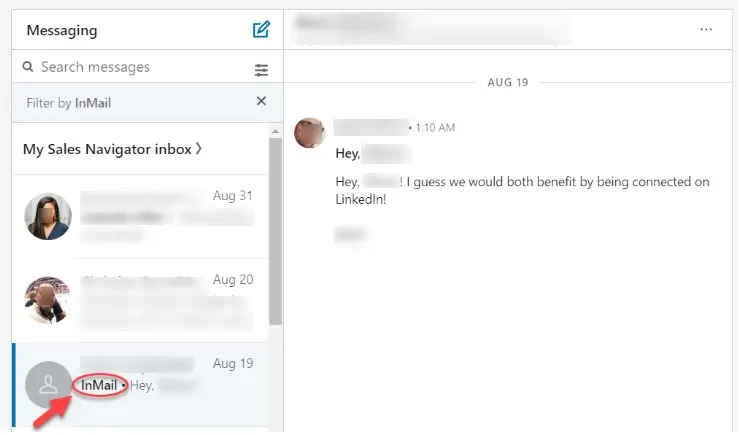
An Open InMail in the normal LinkedIn inbox.
What does an InMail look like?
InMail is similar to email. Each message requires a subject line, and most are written pretty formally: they have line breaks, begin with ‘Hello’, and end with a proper sign-off.
InMails are a more asynchronous way of communicating than LinkedIn chat, although if a user accepts an InMail message request, they can start interacting with each other in an interface that’s much closer to instant messaging.
Users that receive an InMail request have several options for responding. They can accept the message by clicking the auto-reply button ‘Yes, I’m interested’. This starts a conversation with the InMail sender. Alternatively, they can reply directly with a message of their own, or cut off all communication by selecting ‘Not interested’. There’s also, of course, a final option: ignore the InMail outright.
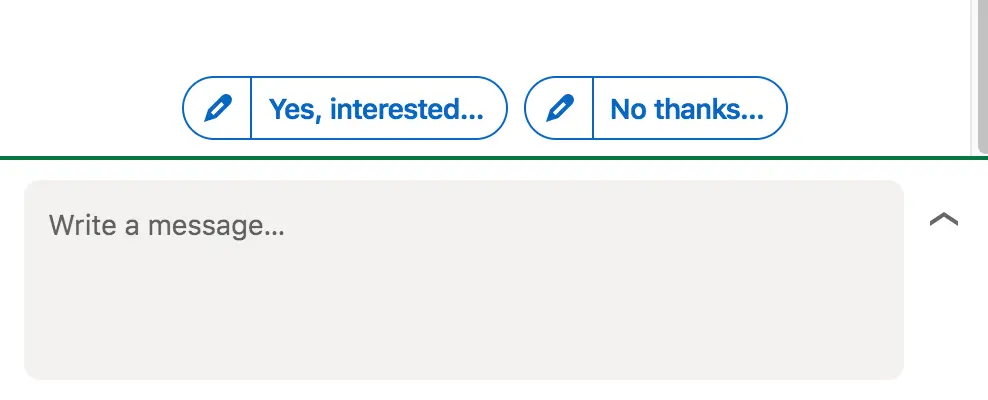
InMail response options.
Any InMail that gets a reply within 90 days of sending is automatically credited back to the sender’s monthly allowance. So it’s best to do everything possible to get a response. It doesn’t have to be a positive response, either - LinkedIn counts someone hitting the ‘decline’ button as a response for crediting purposes.
If you want to avoid your message languishing in the ether, check out our guide to improving your InMail response rates.
What are LinkedIn InMail credits?
LinkedIn wants to keep its reputation strong and avoid spam, so it heavily limits the amount of InMail messages members can send with something called LinkedIn InMail credits.
At the start of your billing cycle, each Premium, Sales Navigator or Recruiter account receives a set quota of monthly InMail credits. For Premium Career members this number is 5, rising to 15 for Premium Business. Recruiter Lite comes with 30 InMail credits a month, and Sales Navigator offers 50.
Each time a user sends an InMail to another member of the LinkedIn platform, their credit number goes down by one. InMail credits can be accumulated month to month, but only up to a maximum of 3x the monthly quota. Sales Navigator users can accumulate a maximum of 150 InMail credits.
Basic LinkedIn accounts receive no allowance for InMails but can send connection requests as usual. They can also send Open InMails to members with Open Profiles.
50 credits per month is actually a pretty low figure, hardly enough to carry out a sophisticated sales strategy on LinkedIn. One way to work around this limit and get more InMail credits without any extra cost is to target accounts with Open LinkedIn Profiles. With Sales Navigator you cannot purchase additional credits, making Open Profiles the only free way to extend your reach
The format of an Open InMail.
What are Open Profiles on LinkedIn?
Open Profile is a feature available to Premium LinkedIn subscribers that allows any other LinkedIn member to message them for free, without the sender using any InMail credits. In Sales Navigator, Open Profile members are identified by a green badge next to their name in lead search results. You can also confirm by clicking through to their profile: if the message window shows "Free Message", they are an Open Profile member.
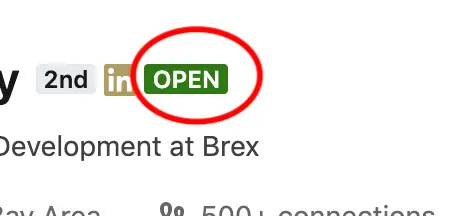
The Open Profile logo on LinkedIn.
Why do people make their LinkedIn profiles open?
The reasons users set their accounts to open vary, but some motivations include:
1 - They want to make it easier for prospects to reach out to them or engage with their brand. Sales reps or business leaders might choose to open their LinkedIn profiles to make it easier for leads to come to them.
2 - They’re trying to build themselves out as an industry expert or thought leader. Individuals looking to build a personal brand on LinkedIn might keep their profile open to build their network, encourage collaboration, and improve their Social Selling Index.
3 - They like connecting over social media. Some users simply like others having the opportunity to contact them. They’re generally more outgoing and are more likely to engage positively with new opportunities.
Are there any downsides to targeting Open Profiles?
While adding Open Profiles to your campaign types is a great way to bypass restrictive LinkedIn limits, there are a couple of things to bear in mind:
Open Profile members may be more selective. Because anyone can message them, they tend to receive more outreach than the average LinkedIn user. Generic or templated messages are more likely to be ignored. Lead with a clear value proposition and keep it concise.
You cannot filter for Open Profiles in a standard LinkedIn search. LinkedIn does not offer an Open Profile filter in its basic search. In Sales Navigator you can identify them by the green badge next to their name, but finding them at scale requires either manual scanning or a tool like Salesflow that filters them automatically.
Set Your Own Profile to Open
If you are a Premium LinkedIn user, consider setting your own profile to Open. It signals approachability and can improve your Social Selling Index.
To enable it: click the Me icon at the top of your LinkedIn homepage, click View Profile, click the Edit icon in your introduction section, find the Open Profile toggle, switch it on, and click Save.
6 ways Open Profiles Improve Lead Generation
1 - Bypass the connection request limit and reach an extra 400 users a month for free. Open InMails do not count toward your connection request quota or your InMail credit balance. With LinkedIn limiting connection requests to approximately 100 per week for most accounts, Open InMail is a valuable additional channel to maintain outreach volume.
2 - Send messages of up to1,900 characters. Connection requests are limited to 300 characters. Open InMails allow up to 1,900 characters, giving you far more room to make your case.
3 - Send messages that stand out. Because there is no automated way to filter for Open Profiles at scale without a tool like Salesflow, these prospects receive less automated outreach than average. Your message has a better chance of standing out in a less crowded inbox.
4 - Create dedicated Open InMail campaigns. Using Salesflow, you can upload a list of LinkedIn leads, filter for users with Open Profiles, and run automated outreach cadences. Want to give Salesflow a spin? Sign up for our 7-day free trial here.
5 - Set your own profile to Open. Users with a Premium LinkedIn account can improve their social selling by changing their own account settings to ‘open’. To do so, turn on Premium Profile visibility from LinkedIn settings.
6 - You can automate them. Using Salesflow, you can run dedicated Open InMail campaigns that automatically identify Open Profile members from your lead list and message them without touching your credit allowance.
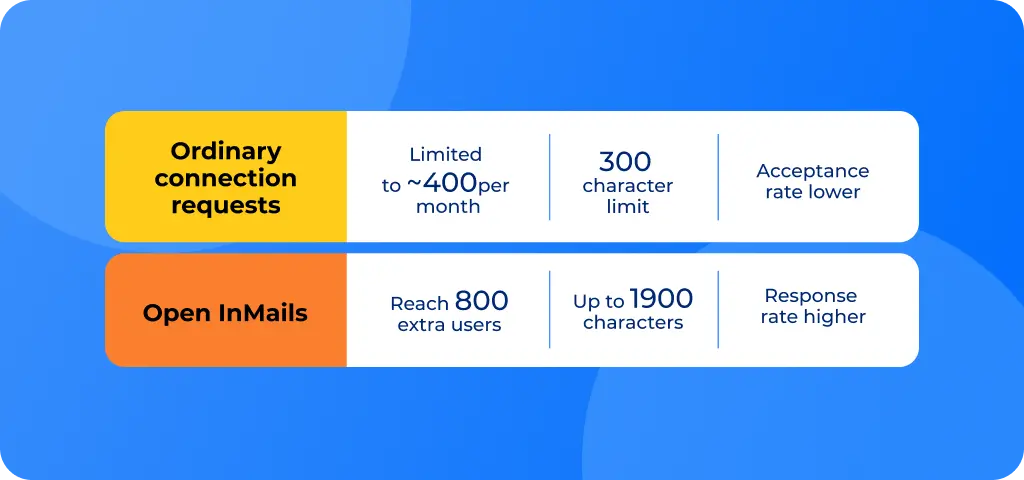
Increase your LinkedIn Credits by Targeting Open Profiles
Using LinkedIn alone, there’s no way to filter searches for a list of Open Profile users. However, you can run a regular Sales Navigator search and scan the list manually. Once you have a dedicated lead list, you can import your selection of Open Profile prospects into Salesflow for effective LinkedIn automation campaigns that scale.
Here’s how to create a lead list using Sales Navigator:
Step 1: Run your standard Sales Navigator search using your ICP filters. Apply Title, Industry, Geography, Seniority, and Company Size filters to get a relevant results list.
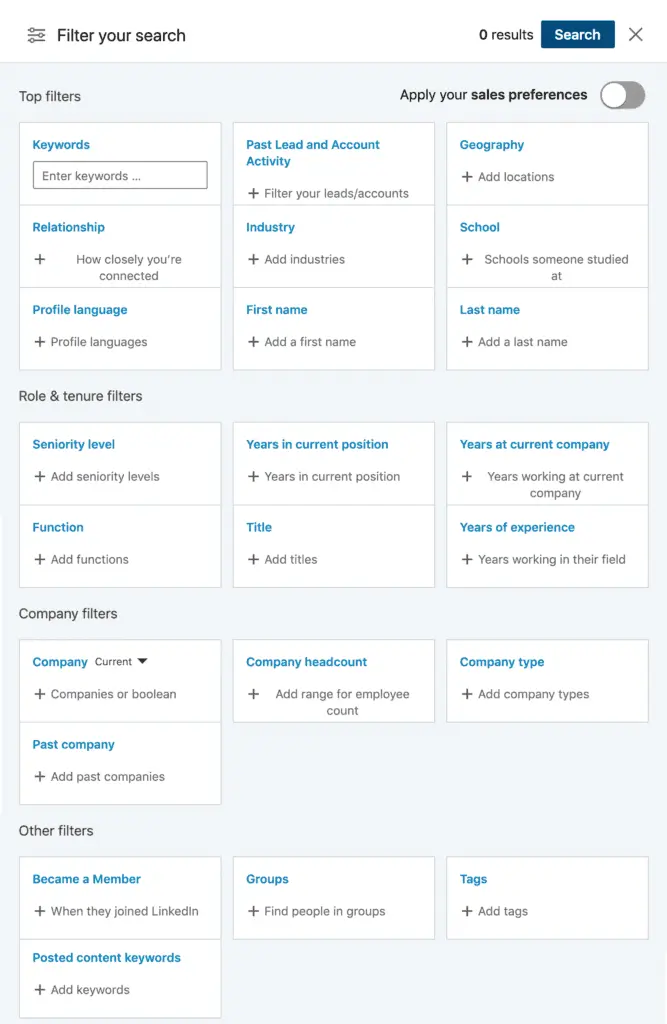
Sales Navigator filters.
Step 2: Scan the results for the green Open Profile badge next to prospect names. Click through to a profile to confirm: if the message window shows "Free Message", they are an Open Profile member.
The Open InMail LinkedIn Premium badge.
Step 3: Add these leads to a dedicated Open Profile lead list. Create a separate lead list specifically for Open Profile prospects. If you are running multiple campaigns, segment by industry or seniority.
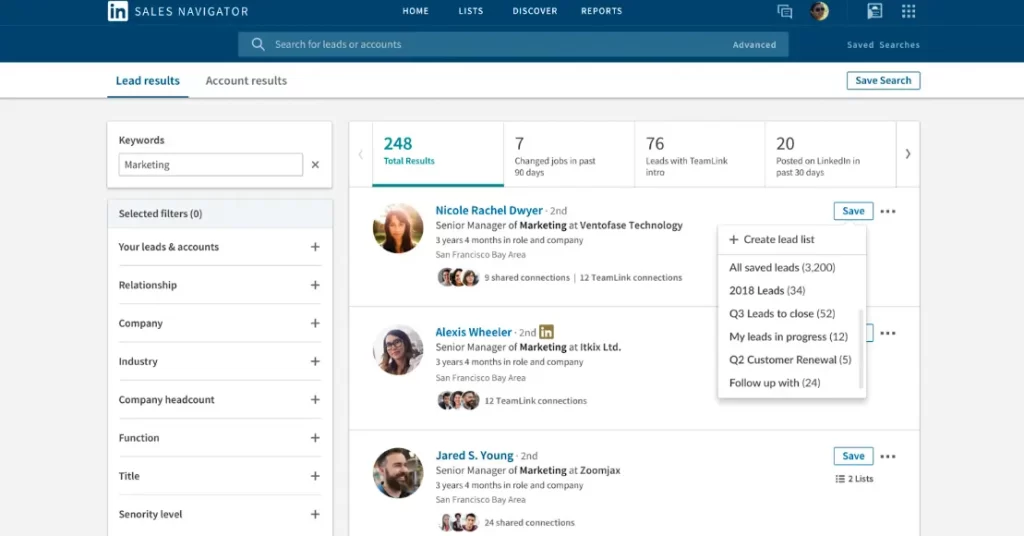
Create different LinkedIn lead lists for each campaign.
Step 4: Build out your list over time as you come across other open profiles. As you’re browsing LinkedIn or LinkedIn Sales Navigator, add any other relevant leads you come across in shared Groups and Events, or via your LinkedIn Feed, to your Open Profile lead list.
The Faster Way: Let Salesflow Filter Open Profiles Automatically
As a LinkedIn InMail automation tool, Salesflow builds and sends your Open InMail campaigns automatically - so you spend your time on replies instead of manually filtering lead lists.
When you create an Open InMail campaign in Salesflow and import a Sales Navigator lead list, Salesflow automatically identifies which members have Open Profiles and routes only those contacts into the campaign. Prospects without Open Profiles are excluded automatically, so you never accidentally use a credit on a message that should have been free.
Save time and remove the need to manually filter lead lists by importing contacts straight into a Salesflow Open InMail campaign.
Thinking about trying Salesflow? Sign up for our 7-day free trial and experience what seamless multi-channel outreach automation looks like for yourself.
Using LinkedIn Open InMail campaigns with Salesflow
Adding Open Profile users to a Salesflow Open InMails campaign lets you message 400 additional leads a month at no extra cost.
For this next step, you’ll need a Salesflow account. If you don’t already have a Salesflow account, book a demo with our automation specialists.
You can add contacts to your Open InMail campaign from a basic LinkedIn search, CSV import, or Sales Navigator search.

How to create a Salesflow Open InMail Campaign
Step 1: Log into your Salesflow account.
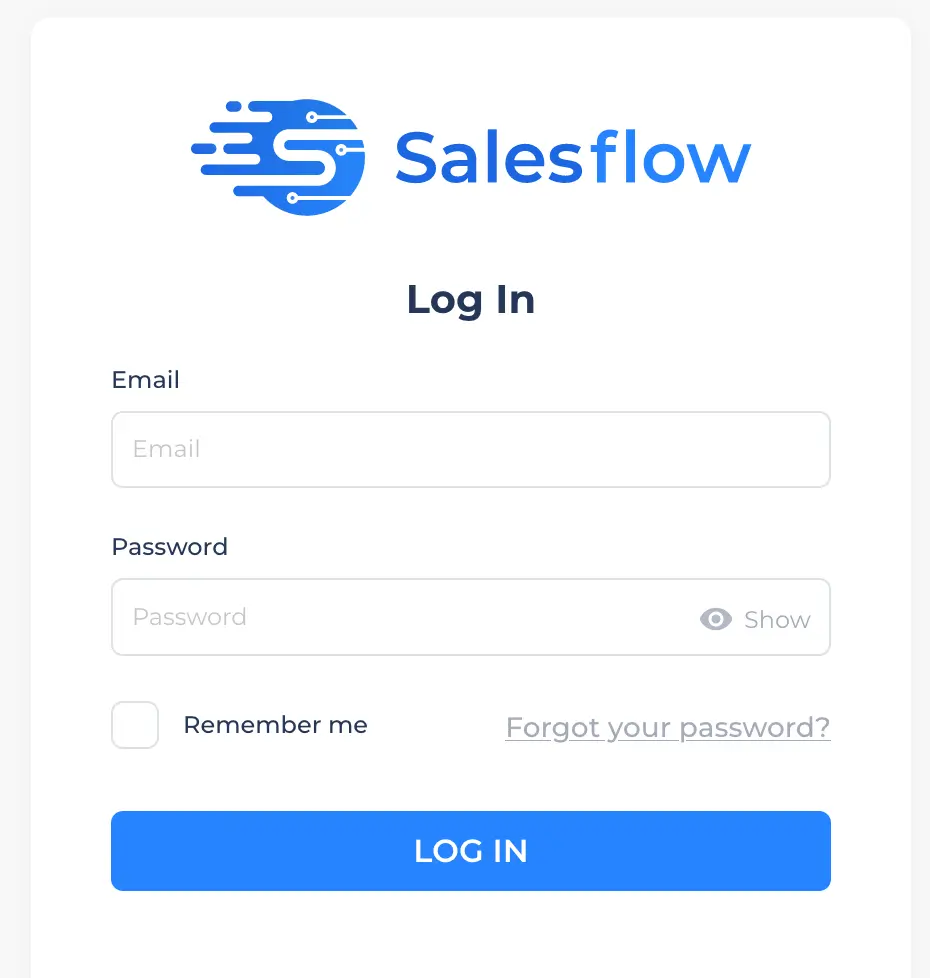
Step 2: Select ‘campaigns’.
Step 3: Add a new campaign.

Step 4: Choose ‘Open InMails’ as the campaign type. Contacts added to an Open InMail campaign must have an Open Profile and be 2nd or 3rd degree connections. For first-degree connections, try an existing contacts campaign.

Step 5: Add a name for your campaign. Choose a title that clearly states its purpose and will be easy to search. For example ‘Open InMails campaign - Sales Leaders’.
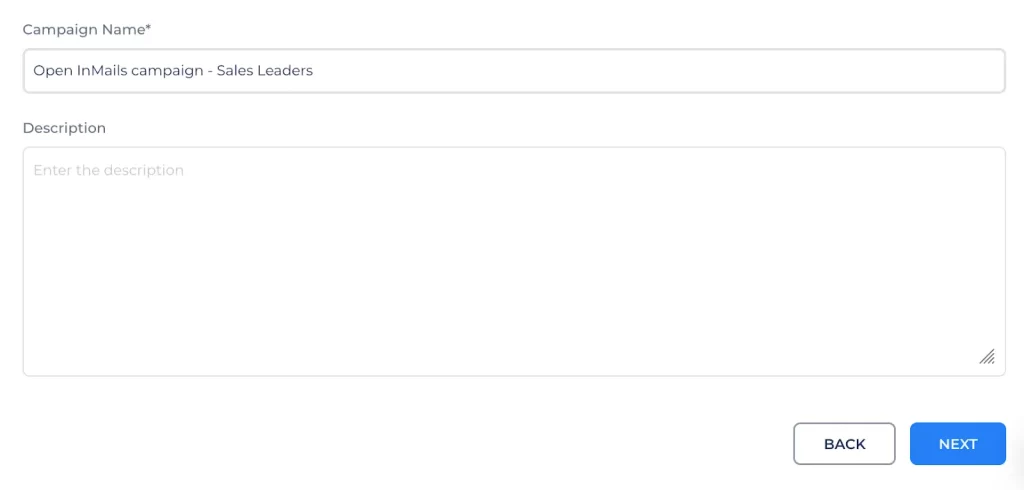
Step 6: Set how many messages to send per day. We recommend sending about 15-25 per day, to reach 400 Open Profiles per month.

Step 7: Add your message template. You’ll need to enter an InMail subject line and then the body text. In the body, make sure you address common industry pain points and how your product solves them. Include social proof and key results to strengthen your claim, and consider offering a valuable giveaway before your call to action, such as a whitepaper on industry insights. For more tips on structuring your messages to improve response and conversion rates, check out our guide to LinkedIn InMail best practices.
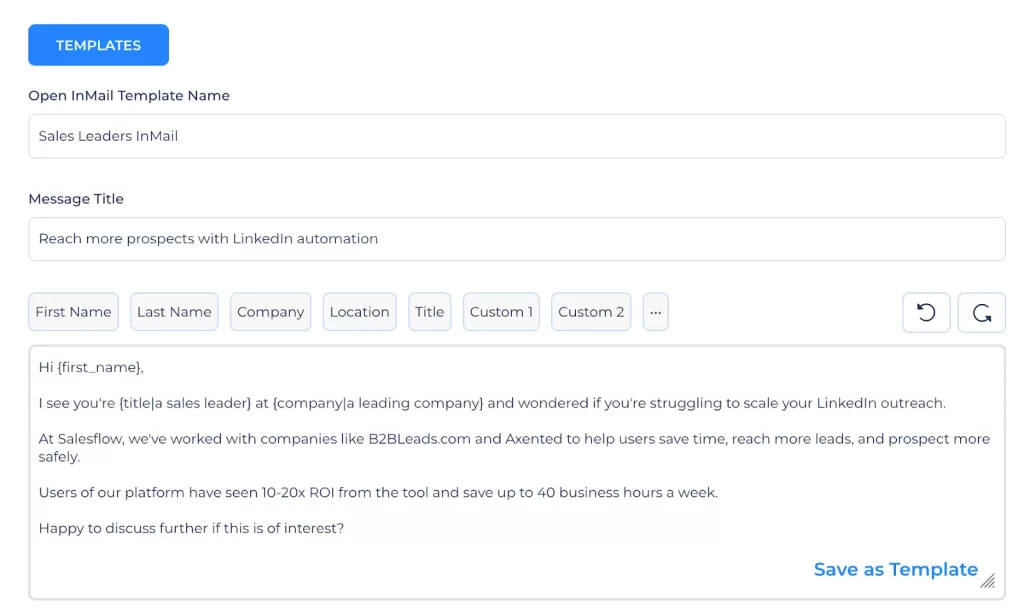
Step 8: Under ‘Send after’, select ‘0’. This will be the only message in the sequence, so there’s no need to set a follow-up cadence.

Step 9: Confirm the campaign schedule. Generally, it’s best to stick to normal working hours between Monday and Friday.
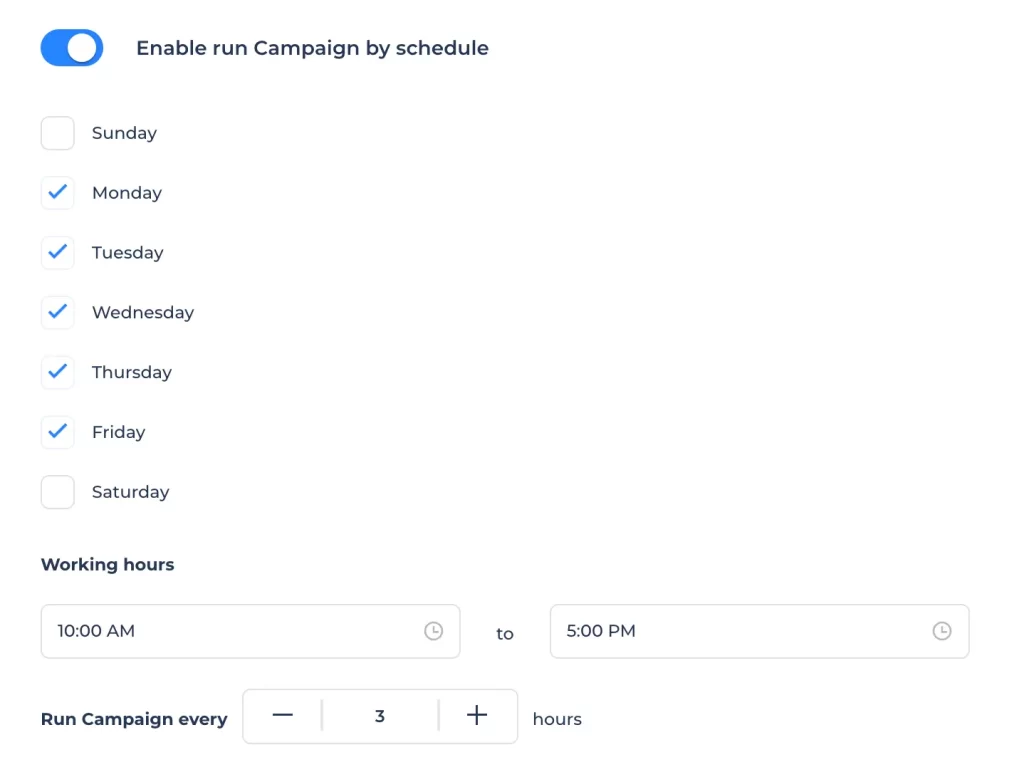
Step 10: Review your campaign. If you’re happy, click ‘create’.

Step 11: Add your Open InMail users. Select ‘add contacts’. Under ‘Sales Navigator Options’, select ‘Import Saved Searches’.
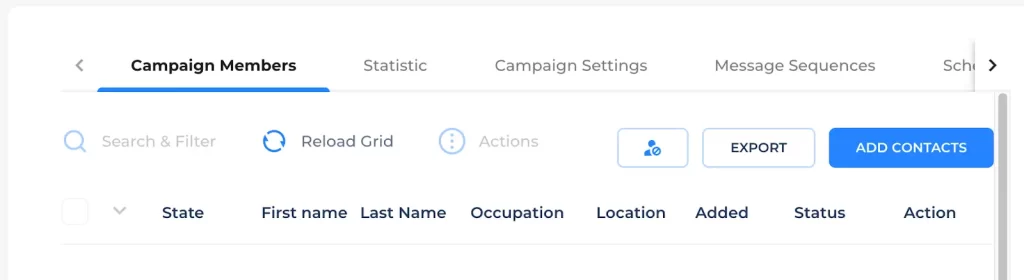
Step 12: Select your list and click ‘Add all leads’. Then click ‘import’. The Open Profiles will appear in your campaign, with a green ‘In’ badge next to the user’s name.
Step 13: Press start to begin your Open InMails campaign. Voila! More leads, without using up precious LinkedIn credits. Salesflow’s Linkedin software will automatically run your InMail campaign in the background of your activities. We’ll also notify you when you get a response, so you never miss a lead.

Want this step-by-step guide as a video tutorial? See our guide to Open InMail campaigns.
Reach more leads, faster
Now you've got the low-down on LinkedIn InMails, you can reach around 400 more leads every single month, with little to no extra effort.
Once you’re ready to take your InMails further, check out our guide to InMail best practices to improve your response rates.
To benefit from LinkedIn automation at scale and save 4-6 minutes per lead, Try Salesflow for free, 7 days - no card required
FAQs:
.svg)
.png)

.png)
.png)