

Prefer listening?
Hear the audio version of this article here:
It's 2026, but sellers everywhere are still dealing with the LinkedIn connection limit introduced in 2021. Of course limiting spam is important, but outbound sales is a numbers game. So, with the platform heavily restricting weekly connection numbers, how do you hit the scale you need without risking an account ban?
These 3 strategies let you bypass LinkedIn's connection restrictions and reach enough prospects to hit your targets.
What is the LinkedIn connection limit?
The connection limit is no longer a single fixed number that applies to every LinkedIn user. In 2026, LinkedIn uses a dynamic system based on your account's Trust Score, sometimes called Account Health Score, which is calculated continuously based on your behaviour on the platform.
High-trust accounts with strong SSI scores and acceptance rates above 40% can send up to 200 connection requests per week. Accounts with poor signals can drop to as few as 50. Same platform, same week, completely different limits, because the accounts are completely different in how LinkedIn sees them.
The factors that determine your personal limit include:
- Your Social Selling Index (SSI) score. Accounts scoring 70 or above are typically allowed up to 200 requests per week. Accounts scoring below 50 are often capped at 80 or fewer. Check yours free at linkedin.com/sales/ssi.
- Your acceptance rate. Maintaining an acceptance rate above 30% is the minimum threshold to avoid algorithmic tightening. Aim for 40 to 60% for healthy account standing.
- Your pending invite count. A high number of unanswered invites signals to LinkedIn that your outreach is not landing. Regularly withdraw pending requests that have not been accepted after 2 to 3 weeks.
- Sudden activity spikes. LinkedIn actively detects bot-like behaviour such as sending all requests on Monday morning or unnatural activity spikes. Even if you are within your numerical limit, sudden bulk activity triggers spam detection.
NOTE: LinkedIn does not officially publish its exact limits. For privacy, LinkedIn Support cannot disclose the specific type or reason for invitation restrictions on any account. The ranges above are based on consistent third-party testing across thousands of accounts.
What is the LinkedIn weekly invitation limit?
While the company doesn’t give exact numbers, users report getting locked out of LinkedIn if they exceed roughly 100 connection requests a week. The platform is most suspicious of users who suddenly reach out to many more accounts at once, so some users are able to exceed this limit by slowly ‘warming up’ their account with gradual increases in their outbound activity.
If you want to be certain of avoiding a block, though, you should try and remain under this threshold.
How many LinkedIn connections can you send per day?
Rather than dividing a fixed weekly number by five, the right daily volume now depends on your personal account limit. As a safe general rule, spread your connection requests evenly across each working day to mimic natural human behaviour. The weekly limit resets exactly seven days after you send your first connection request of the current cycle, not on a fixed calendar day.
For most active Sales Navigator users with a healthy account, 20 to 30 connection requests per working day is a safe and sustainable pace.
By default, Salesflow recommends an ideal invitation limit, so as to keeping you from getting flagged or banned on LinkedIn. We pride ourselves on being one of the safest outreach automation tools on the market, with a ban rate close to 0%.

Interested in taking Salesflow out on a spin? Sign up for a 7-day free trial here.
How to Warm Up Your Account and Increase Your Personal Limit
If you are starting a new LinkedIn account or returning after a period of inactivity, do not immediately send connection requests at full volume. Build up gradually over 4 to 6 weeks:
- Week 1 to 2: Send 5 to 10 connection requests per day. Focus on people you are likely to get accepted by: existing professional contacts, people you have met, or warm prospects.
- Week 3 to 4: Increase to 15 to 20 per day if your acceptance rate is above 40%.
- Week 5 onwards: Move to your target daily volume if your account shows no restrictions.
Alongside this, engage with content on LinkedIn daily, complete your profile fully, and aim to keep your SSI score above 60. These signals collectively raise your Trust Score and directly increase the number of connection requests LinkedIn allows you to send.
How to bypass the LinkedIn connection request limit
1. Use Open InMails
One of the most effective ways to bypass the LinkedIn connection limit is by using Open InMails. You can send Open InMails to users with Open Profiles for free, without using any of your monthly LinkedIn InMail credits, and without sending a connection request at all.
Using a Salesflow Open InMail campaign, you can send up to 50 Open InMails per day, reaching a significant number of additional prospects each month at no extra cost. The exact monthly volume depends on how many Open Profile members are in your lead list, typically 5 to 15% of any given list.
For a full step-by-step guide on setting up an Open InMail campaign with Salesflow, see our guide: LinkedIn Open InMail: How to Reach More Leads for Free →
How to Send 400 Open InMails for Free Each Month
To be able to send 400 open InMails each month, you need to have the right type of account. First of all, you must have a premium Sales Navigator subscription so that you can search for users that are open profile members. These are the only types of accounts that support open Inmails.
How to Launch a Successful Open InMail Campaign
To launch a successful open InMail campaign, pay attention to how you structure your messages. Make sure you include a CTA, target the right prospects, and speak to relevant pain points. Once you’ve launched an Open InMails campaign, you can improve the results using automation software and A/B testing.
Write Convincing Messages
Even before you start to bypass the LinkedIn connection request limit with this strategy, you should focus on writing successful messages. First of all, remember that these messages should be direct and simple.
An InMail that doesn’t have a clear point or that goes on for too long isn’t likely to be a successful message.
After all, most people don’t have a large chunk of time to read through a lengthy LinkedIn message. Especially when it's a cold InMail they’ve been sent from a stranger.
The limits when it comes to LinkedIn mail messages are 1900 characters for the body paragraph and 200 characters for the subject.
When crafting your messages, keep these limits in mind so that your InMails don’t feel too condensed or rushed. In practice, keep messages well under 800 characters. According to LinkedIn's own research, messages under 400 characters get 22% higher response rates than average.
Personalise. Copy-pasting the same message only swapping a first name and company name will not feel personal. Reference something specific to the person or their company that only applies to them. Personalizing outreach messages is the single biggest driver of reply rates.
Include a clear CTA. Whatever the objective of your campaign, include a clear call to action at the end of every message. If the CTA is not immediately obvious, prospects will not act. Good CTAs include requesting a 15-minute call, asking for feedback on a relevant piece of content, or inviting them to a relevant event.
Check your targeting. Before launching, verify that your lead list contains the right people. Even the best-written message will not convert if it goes to the wrong audience.
Create the Campaign
After you’ve completed the preliminary steps above, it’s time to launch your open InMail campaign.
To do this, get started by going to Campaigns from your Salesflow dashboard. Click ‘Add Campaign’ and choose ‘InMail campaign’.

Next, add your LinkedIn Inmail message using the tips above.
After this, use the ‘Search’ section to select leads for the campaign. You can set it up to filter according to which leads can receive open InMails.
Finally, you can take the last step of launching your campaign.
A/B Test
If you want to get the most out of your LinkedIn connection request message limit, it’s smart to use A/B testing. With A/B testing, you can improve your reply rate to over 70% and your connection request rate to up to 80%.
When you’re using LinkedIn for prospecting, think about using A/B testing for your connection message (or another type of first touchpoint), CTA, and follow-up messages.
Want a quick tool to help you A/B test outreach messages? Use Salesflow's free A/B testing worksheet here.

An Example of a Successful Open InMail Opening Message
To help you get started with this campaign type, here’s an example of a successful Open Inmail message.
Remember that, for Open InMails, you’ll need to include a subject line. For this example, we could use something like, “[Name of Prospect], Here’s a great way to achieve [solved pain point].”
“Hi [Name of Prospect],
It looks like both of us are interested in [industry or topic]. I see you’re responsible for [job role] at [company]. Have you thought about ways you could do [pain point] more effectively?
At [Your Company Name], we’ve helped [prospects like you] accomplish [key result, with statistic]. If you want to learn more about how we can help you with it, I’d be happy to speak with you more about it on a call.
If you’re interested, let me know when you’re free this week?
Regards,
[Your Name]”
2. Bypass the LinkedIn Connection Limit using Groups
Once you are a member of a LinkedIn group, you can message other group members privately even if you are not connected with them. This bypasses the connection request limit entirely for those prospects.
To use this effectively with Salesflow, set up a Groups Campaign. Learn how in our guide to Groups and Events Campaigns →
How groups help you bypass LinkedIn’s connection request restrictions
Once you’re a member of a group, you can message other group members privately, even if you aren’t connected to them on LinkedIn. This is the second method you can use to massively increase the number of prospects you reach despite the LinkedIn connection limit.
To do so, all you need is a Salesflow Groups Campaign. Learn how to use this campaign type in our guide to Groups and Events Campaigns.
Before you start this campaign type, you’ll need to be a member of some groups. You can either join existing groups or create a new one.
Joining existing groups
To do this most effectively, search for groups that are related to your industry or to the service or product you offer.
The key here is to focus on groups that have users who fit within your business’s target demographics.
Once you’ve joined these groups, you can interact with other members. This is a great way to build connections. Just make sure you’re not too ‘salesy’ when you post. Instead, be helpful and provide valuable information.
Creating new groups
Another way to use groups on LinkedIn to make new connections is to create your own LinkedIn groups. By doing this, you can build up a list of ready-to-buy, ideal prospects.
Start by creating your group, after which you can send invitations to your existing LinkedIn connections.
You can also go through the members of groups you’ve already joined to search for potential members for yours.
Once you’ve put your list together, send out your invites. Make sure that these are personalized so they don’t come off as spammy.
An Example of a Successful Group Invitation
A successful group invitation might say something like:
“Hi [Name], I’ve noticed that we’re both in the same group, [shared group name], and that you’re also interested in [topic]. Considering this, I thought you might be interested in joining my group.
If you’re interested, you can join the group here.
Regards,
[Your Name]”
3. Use Events to reach more prospects
LinkedIn allows event attendees and organisers to message other participants directly, without these messages counting toward the connection request limit. Using a Salesflow Groups and Events Campaign, you can add a list of prospects from a shared event and message attendees at scale.
Hosting your own LinkedIn Events also builds authority and trust for your brand, demonstrating that you have valuable insights to offer your target audience.
Customize Your Event
Once you’ve created an event, include a detailed description with keywords of interest to your target audience. Put these keywords in the event name, too.
Add an image that’s related to the event you’re creating, and make sure it’s compelling.
Then, pick a date and time that gives you time to prepare—and that will make it more likely that the people you want to attend will be able to do so.
You’ll also have to decide if you want to create your own registration or use the LinkedIn one. If you use the LinkedIn one, you’ll have to include a privacy policy.
When creating your LinkedIn event, always keep your target audience in mind. This will improve your chances of generating leads.
They might also share the event link with their connections, which will get you more views and build up your brand.
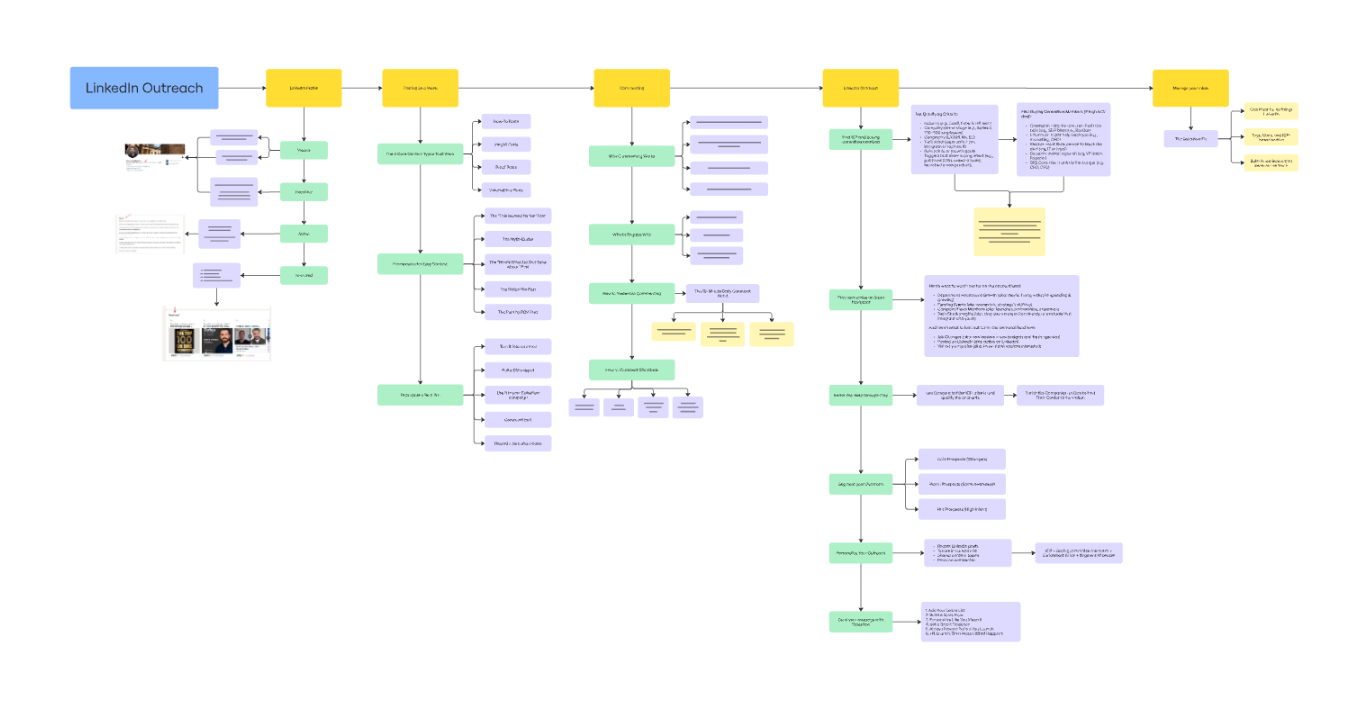
Want a step-by-step walkthrough for how to do LinkedIn outreach at scale? This Miro board details it all:
Account Safety Tips for All Three Methods
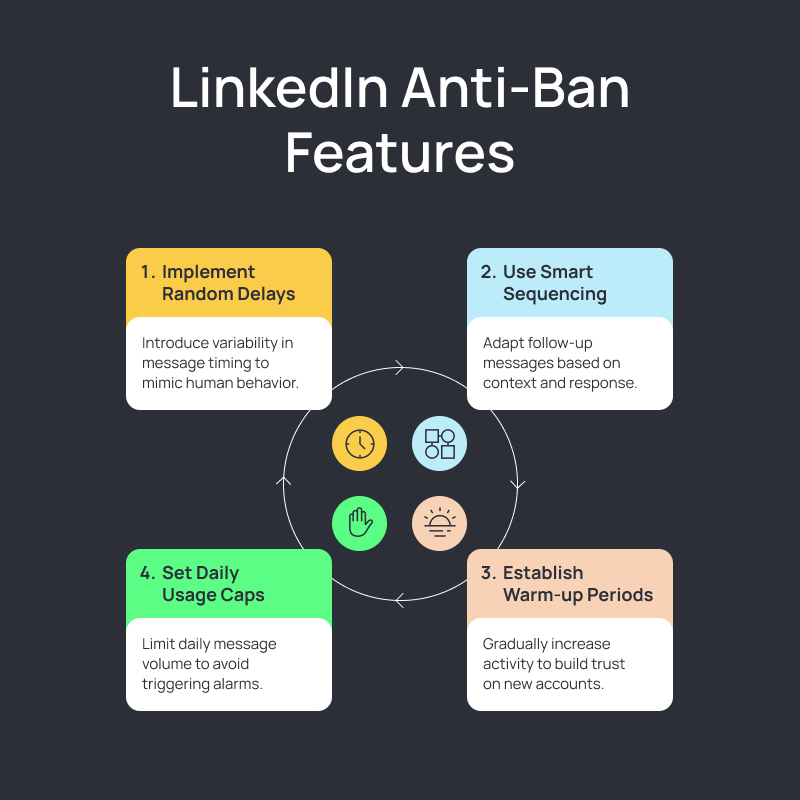
All three methods above are legitimate LinkedIn features, not workarounds that violate LinkedIn's terms. That said, a few principles apply across all of them:
- Keep messages personalised and relevant. Generic bulk messages from any channel get flagged as spam and can trigger restrictions.
- Stay within Salesflow's recommended daily sending limits for each campaign type. These are calibrated to keep your LinkedIn accounts safe.
- Monitor your acceptance rate for connection request campaigns. If it drops below 30%, pause and refine your targeting before continuing.
- Spread activity across the working week. Sudden spikes in any channel, even legitimate ones, can trigger LinkedIn's detection systems.
- Withdraw pending connection requests that have not been accepted after 2 to 3 weeks. A large backlog of unanswered requests damages your Trust Score over time.
Want to Get Even More Leads?
Now that you know the three ways to bypass LinkedIn's connection limit, you are ready to scale your outreach without risking your account.
Salesflow's LinkedIn automation solution saves an average of 4 to 6 minutes per lead, letting you run connection campaigns, Open InMail campaigns, and dynamic multi-channel campaigns all from one dashboard, on autopilot.
.svg)
.png)

.png)
.png)