Someone accepts your connection request at 9:14 on a Tuesday morning. Quick question: will that person be in your CRM by Friday?
At many companies, probably not. The reply stays inside LinkedIn while the CRM remains blank. One person assumes someone else logged it, and a few weeks later, a rep discovers a warm response that never received a follow-up. The campaign is not the real problem. The gap between LinkedIn outreach and the system the sales team uses every day is.
This guide closes that gap. Salesflow supports LinkedIn automation CRM integration in two ways. HubSpot users can use a native connection that syncs in both directions without middleware. Teams using Salesforce, Pipedrive, or another CRM can send LinkedIn activity through webhooks. Below, you will see how both options work, what information each one moves, and the first three workflows worth setting up.
Why Your LinkedIn Automation Tool Needs CRM Integration
Manual copy-and-paste is manageable when a rep sends only a few connection requests each week. The process starts to break at scale. Once every seat is sending hundreds of invites and follow-ups each month, CRM logging becomes the task people postpone or skip.
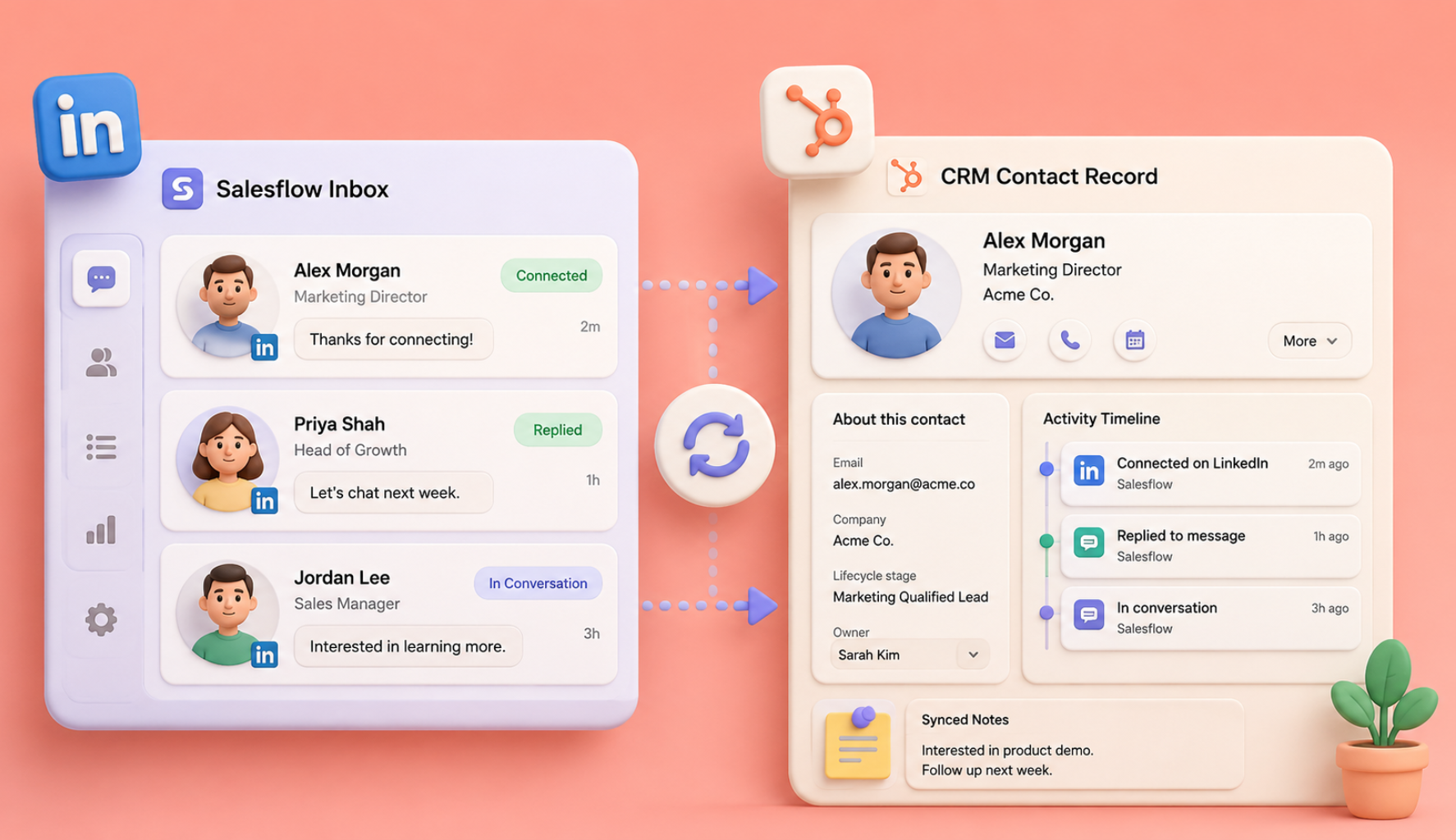
A LinkedIn automation tool with CRM integration removes that weak point. Connections, replies, and tagged leads reach the CRM automatically, along with the LinkedIn context behind them. Reps can then handle those replies under the same follow-up standards used for inbound form submissions. Reporting also becomes more useful. When LinkedIn-sourced contacts carry their activity into the CRM, the question "How much pipeline did LinkedIn generate this quarter?" can be answered with a report instead of guesswork. In practice, the CRM becomes a LinkedIn lead generation CRM rather than a database that misses part of the buyer journey.
HubSpot adds another advantage because the connection works both ways. CRM lists can place contacts into LinkedIn campaigns, including new inbound leads, webinar registrants, or closed-lost opportunities that deserve another look. LinkedIn becomes part of the revenue process instead of a separate channel.
Managers benefit as well. Sales managers coach from the CRM, so activity that never reaches it is hard to review, measure, or optimize.
Two Ways to Connect Salesflow to Your CRM
Which path you take comes down to one question: are you on HubSpot?
Let's start with HubSpot.
The Native HubSpot Integration
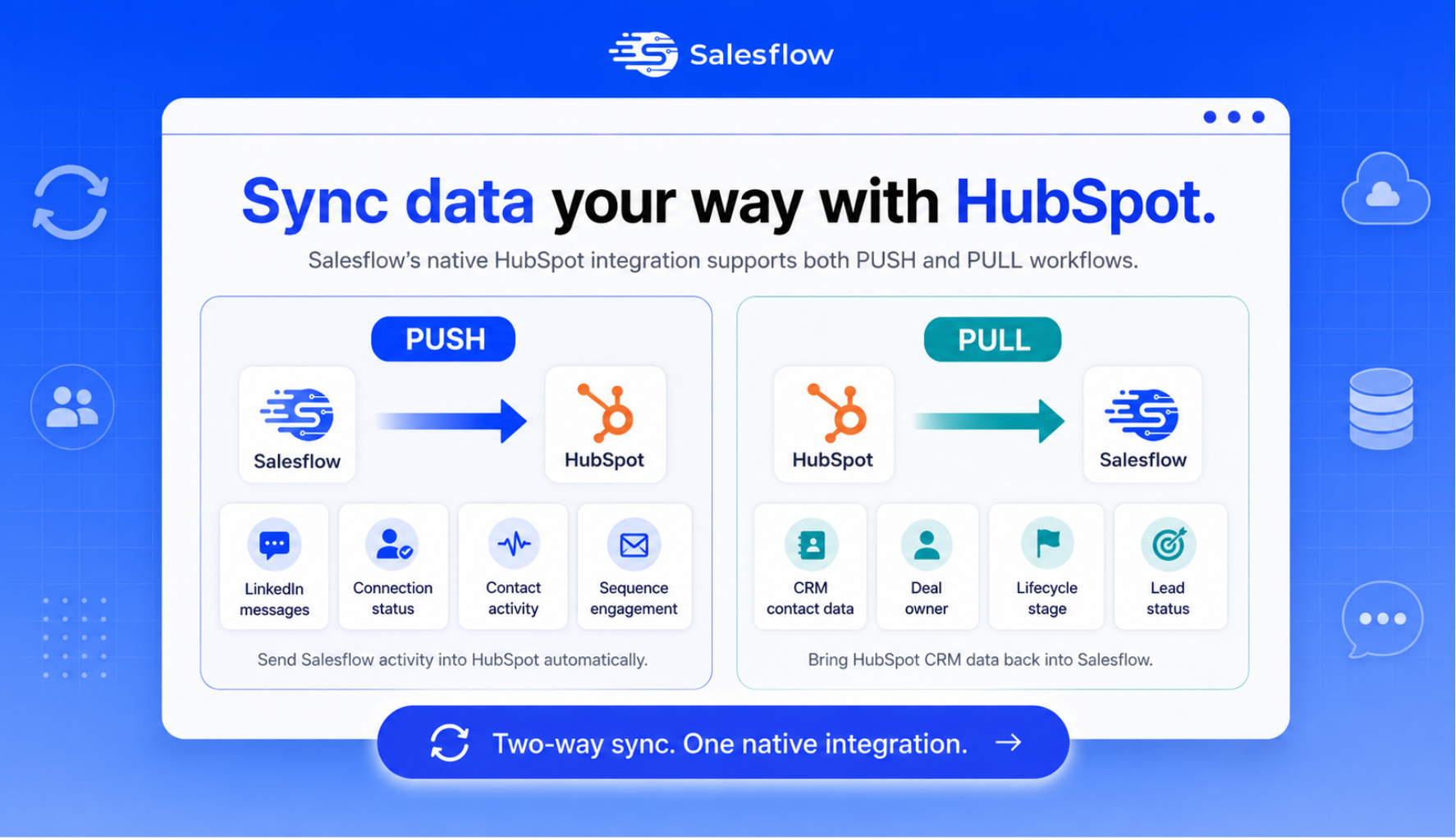
The fastest way to connect LinkedIn automation to HubSpot is through Salesflow's native integration. There is no middleware to configure and no developer work required. The Salesflow HubSpot integration connects the platforms from the Integrations tab and supports data movement in both directions. We cover the broader strategy of pairing HubSpot with LinkedIn outreach elsewhere, so this section focuses on setup and data flow.
PUSH: Salesflow to HubSpot
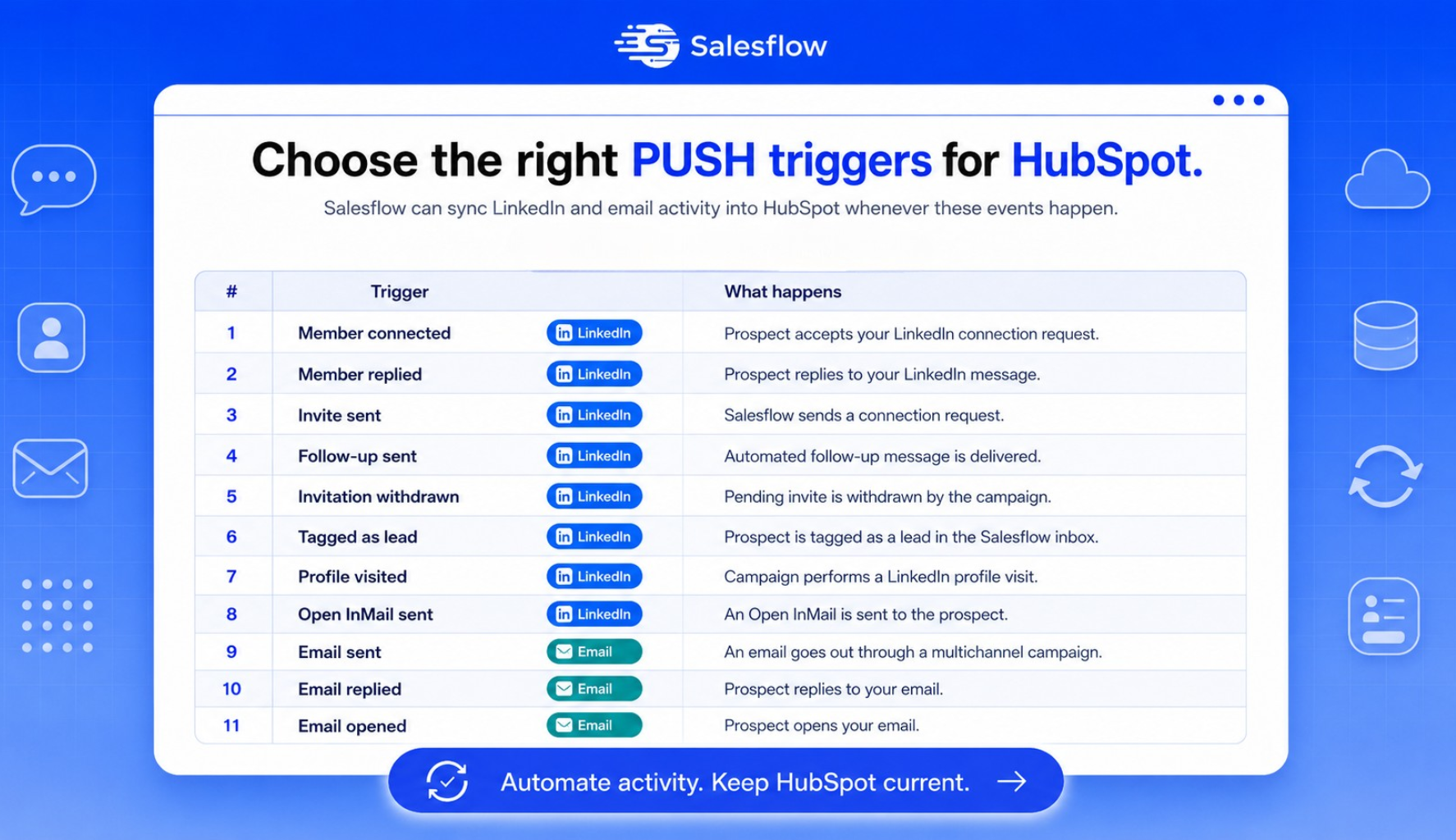
PUSH handles the LinkedIn to CRM sync from Salesflow campaigns into HubSpot. You choose which campaign actions should create or update a contact in a HubSpot static list, or in All Contacts. After that, the selected activity moves into HubSpot whenever it occurs.
You can choose from the following triggers:
1. Member connected: a prospect accepts your LinkedIn connection request
2. Member replied: a prospect replies to your LinkedIn message
3. Invite sent: Salesflow sends a connection request
4. Follow-up sent: an automated follow-up message is delivered
5. Invitation withdrawn: a pending invite is withdrawn by the campaign
6. Tagged as lead: a prospect is tagged as a lead in the Salesflow inbox
7. Profile visited: your campaign performs a LinkedIn profile visit
8. Open InMail sent: an Open InMail goes out to the prospect
9. Email sent: an email goes out through a multichannel campaign
10. Email replied: the prospect replies to your email
11. Email opened: the prospect opens your email
There are eleven options, but most teams can begin with three: "Member connected," "Member replied," and "Tagged as lead." Those events usually mark the point at which a prospect needs a salesperson's attention. Start with them, then add other triggers only when the process calls for them.
One setting is especially useful: "Track new messages of triggered members." When it is enabled, later inbox messages from those contacts are also pushed to HubSpot. The conversation can then build on the CRM record over time, which gives the sales rep more context before responding.
Keep two requirements in mind. A contact needs either an email address or a LinkedIn URL before Salesflow can create or update the HubSpot record. If the email already exists in HubSpot, the existing record is updated rather than duplicated, and imported email values take priority.
PULL: HubSpot to Salesflow
PULL moves data in the opposite direction by importing contacts from a static or active HubSpot list into a Salesflow campaign. There are no activity triggers to configure. As soon as a new contact joins the selected list, Salesflow imports that person into the connected campaign. This two-way CRM integration lets HubSpot control who enters LinkedIn outreach while Salesflow manages the campaign activity.
PULL is easy to overlook, but it can remove a large amount of list management. For example, create an active HubSpot list called "MQLs from the last 30 days, no meeting booked" and connect it to a campaign. Every contact who qualifies for that list can enter the LinkedIn sequence automatically, without CSV exports, manual uploads, or reminders for a rep to move the data.
Contacts must have a LinkedIn URL on their HubSpot record, and each PULL integration can connect to only one campaign. Salesflow also prevents duplicate contacts across campaigns. That rule protects prospects from receiving messages from two campaigns at the same time.
Step-by-Step: Connecting Salesflow to HubSpot
The setup usually takes only a few minutes:
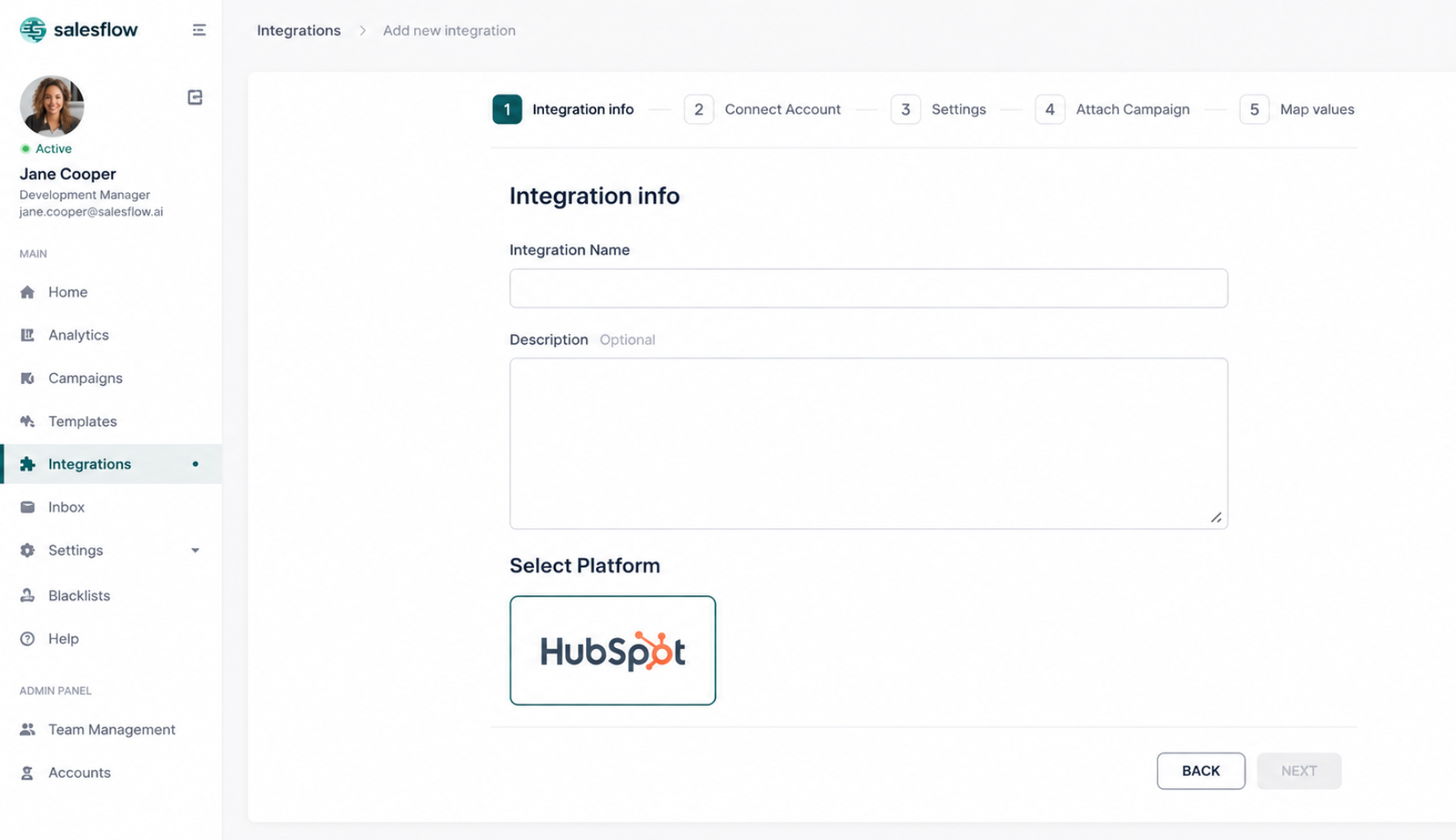
1. Open the Integrations section in Salesflow and select Native Integrations.
2. Click Add New Integration.
3. Name it something descriptive, like "HubSpot Replies to Sales Pipeline," and click Next.
4. Connect your HubSpot account. Authentication opens in a pop-up window. If the window does not appear, allow pop-ups in your browser and try again.
5. Choose PUSH or PULL. For PUSH, tick the activity triggers you want from the list above. PULL has no triggers to set.
6. Attach your campaigns. A PUSH integration can cover one, several, or all campaigns. A PULL integration connects to a single campaign.
7. Map your fields. For PUSH, map the Contact Owner field, select the target HubSpot list, and click Add Integration. For PULL, confirm that the contacts have LinkedIn URLs in HubSpot, map the fields, and complete the setup.
One detail causes most setup mistakes: trigger events are processed only after the integration is active. Earlier connection, reply, and lead-tag events are not backfilled. Previous campaign message history may still be added to HubSpot when a contact is first pushed after activation, but that is conversation-history syncing, not event backfilling. Because timing matters, use the following order.
● For PUSH: create the campaign, create the integration, add contacts, then start the campaign.
● For PULL: create the campaign, build the HubSpot list, create the integration, then add contacts to the list.
Do not create two identical integrations for the same HubSpot account. Both can fire on the same event and create duplicate records that your team then has to clean up.
Webhooks: Salesforce, Pipedrive, and Everything Else
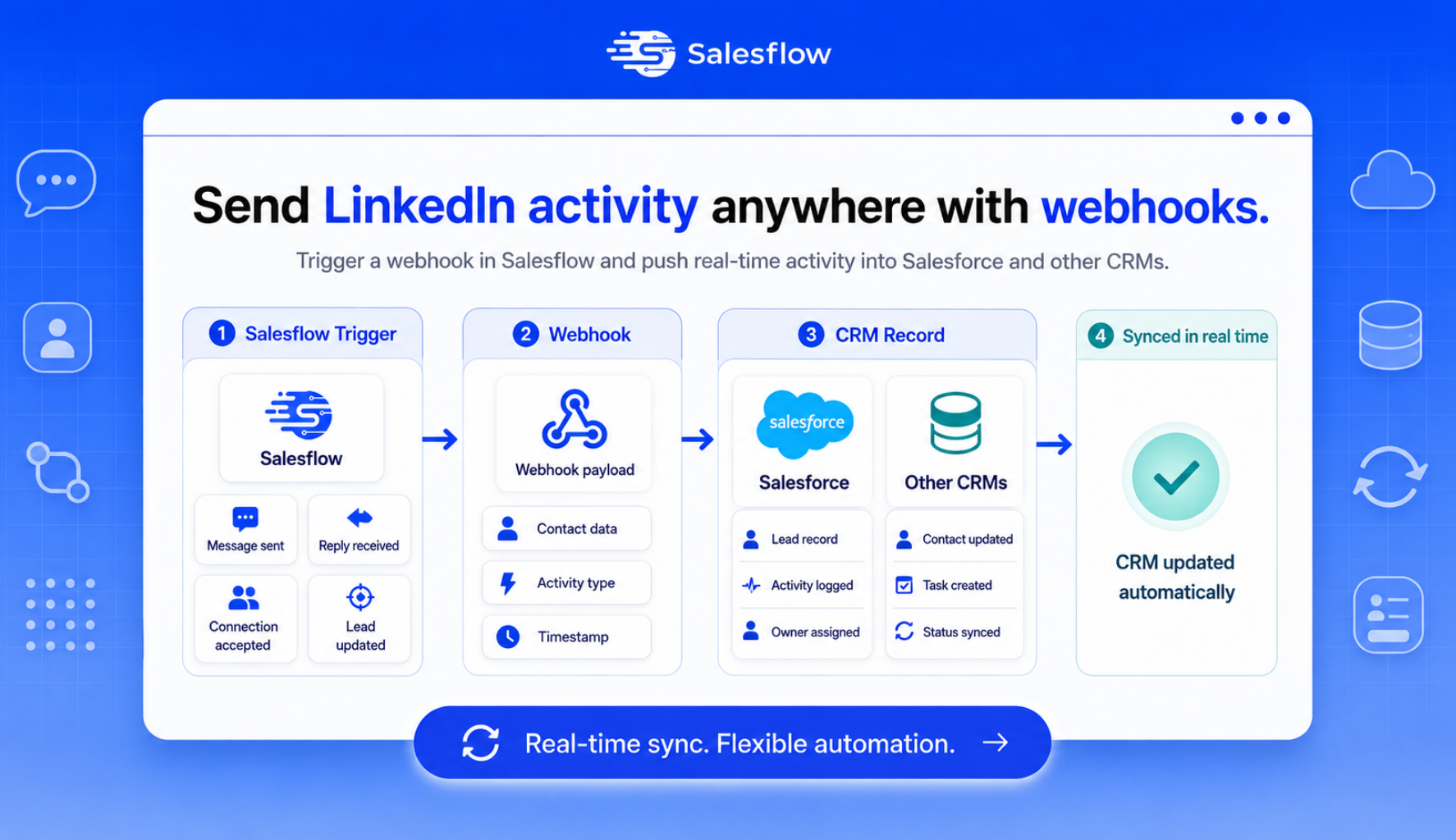
Teams outside HubSpot can use a LinkedIn CRM webhook integration. Salesflow webhooks send campaign activity to any system that can receive an HTTP request, including Salesforce, Pipedrive, and most other CRMs. When a CRM cannot accept webhooks directly, a no-code automation tool can receive the request and create or update the record. Zapier is one common option, but any webhook-capable tool can serve as the bridge.
What a webhook can send
Choose which campaigns should fire the webhook and which conditions should trigger it:
● Member connected: someone accepted your connection request
● Reply detected: someone replied to any of your follow-up messages
● Invite sent: a connection request went out to a campaign member
● Invitation withdrawn: an invite was withdrawn, manually or automatically
● Follow-up sent: a follow-up message was delivered
● Tagged as lead: a campaign member was tagged as "Lead" in the inbox
Before mapping fields, note what happens when "Reply detected" fires. Salesflow sends the entire conversation, not only the newest message. Map the "Member Actions Formatted" field to place the full thread on the CRM record. This allows the workflow to push LinkedIn replies to CRM records with the context a rep needs. Contact information can also be included: name, company, LinkedIn URL, and any email address or phone number the prospect has shared.
Step-by-step: sending LinkedIn activity to your CRM
Use the following process with a webhook-catching tool as the bridge:
1. Create the receiving webhook. In the automation tool, begin a workflow with a webhook trigger. In Zapier, select "Webhooks by Zapier" and use the Catch Hook event. Copy the target URL the tool generates.
2. Add the webhook in Salesflow. Open Integrations > Webhooks, add a new webhook, give it a clear name, and paste the copied URL into the Target URL field.
3. Test the connection. Click TEST in Salesflow. You should receive an OK confirmation, and the automation tool should display the incoming test request. Click SAVE after the test succeeds.
4. Attach campaigns and conditions. Click Attach Campaign, select the campaigns that should fire the webhook, and choose the execute-on conditions. An outbound campaign paired with "Reply detected" is a practical place to start. Click Attach to make the webhook active.
5. Create the CRM action. Add the CRM as the next step in the automation tool. The action might create a Salesforce lead, open a Pipedrive deal at the appropriate stage, or log an activity. Map the Salesflow fields, run a test, and turn on the workflow. This is the step that lets you sync LinkedIn leads to CRM records automatically.
Once the workflow is live, connections, replies, and tagged leads move from the LinkedIn campaign into the CRM without exports, copy-and-paste, or end-of-week data entry.
Which Setup Should You Choose?
For HubSpot teams, the native integration is the straightforward choice. Setup is faster, the connection works in both directions, and PULL from active lists allows HubSpot segmentation to control LinkedIn outreach automatically.
For Salesforce, Pipedrive, or another CRM, use webhooks with the no-code tool your team prefers. Connections, replies, and tagged leads can enter the pipeline as soon as the selected event occurs.
For a custom stack, point the webhook to your own endpoint. Any system that can receive an HTTP request can accept the data Salesflow sends.
Three Workflows Worth Setting Up First
After the connection is working, these three workflows usually deliver value first.
Inbound speed-to-LinkedIn (HubSpot). Build an active list of new inbound leads that match your ICP and connect the list to a Salesflow campaign through PULL. The rep can appear in the prospect's LinkedIn notifications on the same day the prospect downloads a whitepaper, without waiting for the next manual list export.
Reply-to-pipeline (any CRM). Use "Reply detected" or "Tagged as lead" to fire a webhook. The automation tool creates a deal, attaches the conversation, and assigns it to the appropriate rep. This LinkedIn outreach CRM workflow gives LinkedIn replies the same routing process as demo requests.
Closed-lost revival (HubSpot). Place deals lost six or more months ago into a HubSpot list and use PULL to add them to a light re-engagement campaign. These prospects already know the company, so a well-timed LinkedIn message may be enough to restart the conversation.
Salesflow is also a multichannel outreach platform, so LinkedIn and email can run in one sequence. Email events, such as sent, opened, and replied, can sync to HubSpot through the same PUSH integration. The CRM then shows the complete outreach journey instead of only the LinkedIn activity.
Best Practices (and Pitfalls to Avoid)
● Get LinkedIn URLs into your CRM early. PULL cannot import a contact without a LinkedIn URL. Make the URL a standard field that your team completes on every relevant record.
● Set up integrations before campaigns begin. Earlier trigger events are not backfilled. Previous campaign message history may still be added to HubSpot when a contact is first pushed after activation, but that does not recreate the earlier events.
● Avoid duplicate integrations. Two integrations pointing to the same CRM account with the same triggers can create duplicate records.
● Use focused list criteria. Only qualified prospects who have not already been contacted should enter a campaign. Automation will scale the quality of the list, whether that quality is good or poor.
● Respect LinkedIn's limits. CRM integration does not change safe sending behavior. Salesflow uses cloud-based pacing, human-like activity patterns, and daily caps. LinkedIn prospecting automation works best when campaigns are allowed to pace activity rather than receiving thousands of CRM contacts at once.
● Review the sync weekly during the first month. Confirm that fields map correctly, owners are assigned as expected, and duplicates are not appearing. Once the process is stable, it can run with minimal oversight.
Bring Your LinkedIn Pipeline Into Your CRM
Once the systems are connected, LinkedIn outreach and the CRM no longer operate as separate processes. The CRM determines who should be contacted, and Salesflow manages the outreach with up to 400 invites and 1,000 follow-ups per month per seat from the cloud. Connections and replies return to the CRM record, where the sales team already works.
Explore Salesflow's features, review pricing, or book a demo to map the integration to your CRM setup.
Frequently Asked Questions
Does Salesflow have a native CRM integration?
Yes. Salesflow connects natively with HubSpot and supports both PUSH, which sends Salesflow activity into HubSpot, and PULL, which imports HubSpot list contacts into Salesflow campaigns. No middleware is required. Other CRMs connect through webhooks.
Can I connect Salesflow to Salesforce?
Yes. Use webhooks with conditions such as "Member connected," "Reply detected," or "Tagged as lead." A webhook-capable automation tool, or your own endpoint, can then create or update the Salesforce lead with the data Salesflow sends.
What data can Salesflow send to my CRM?
Salesflow can send contact details, including name, company, LinkedIn URL, and any email address or phone number the prospect has shared. It can also send activity events. Webhooks cover connections, replies, invitations sent and withdrawn, follow-ups, and lead tags. HubSpot PUSH adds profile visits, Open InMails, and email opens and replies. Reply events can include the full conversation thread.
Do I need a developer to set this up?
No. The native HubSpot setup is point-and-click. Webhooks can also be configured with a no-code automation tool by copying a URL, testing the connection, and mapping fields. A developer is needed only when the webhook should send data to a custom endpoint.
Will the integration import my old LinkedIn conversations into the CRM?
Earlier trigger events are not imported after the integration is activated. However, when a contact is first pushed to HubSpot after activation, Salesflow may add previous campaign message history to that contact record. In other words, past connection, reply, or lead-tag events are not backfilled, but available conversation history may still sync with the newly pushed contact.
Why do my CRM contacts need a LinkedIn URL?
Salesflow uses the LinkedIn URL to identify the prospect on LinkedIn. A contact in a HubSpot PULL list cannot be imported into a campaign without that URL.
.svg)


.png)