Salesforce and LinkedIn can work together without forcing sales reps to manually copy every useful prospect interaction from one platform to another.
LinkedIn Sales Navigator CRM Sync provides a direct Salesforce connection for eligible Sales Navigator plans. Salesflow takes a different route for automated LinkedIn outreach. HubSpot is Salesflow's native two way CRM connection, while Salesforce and other CRMs can receive selected Salesflow activity through webhooks, APIs, Zapier, or another automation layer.
For teams evaluating a linkedin automation tool with crm integration, understanding this difference matters. The connection method determines which information moves automatically, where prospect activity is stored, and how much setup your team needs.
Why send LinkedIn activity to Salesforce?
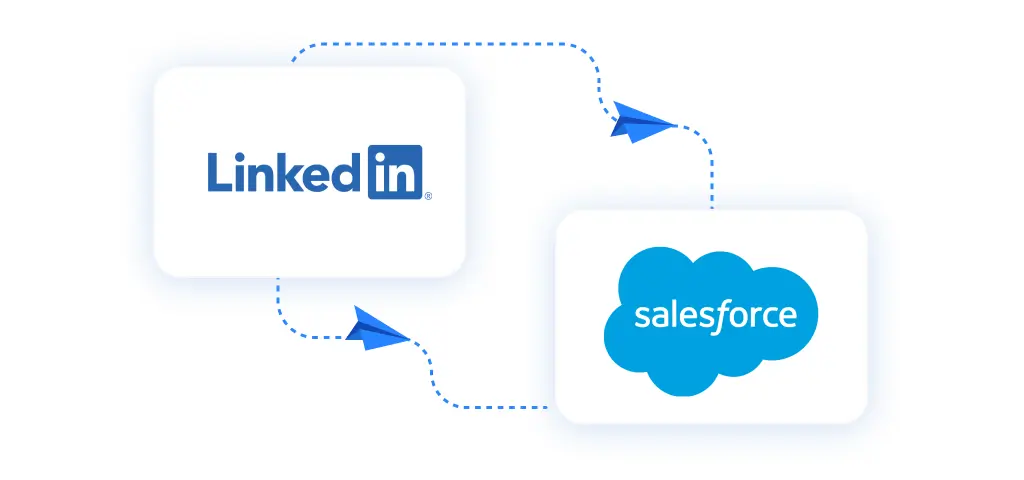
Salesforce can be the system your sales team uses to manage contacts, opportunities, conversations, and pipeline activity.
LinkedIn serves a different part of the workflow. Sales teams use it to identify prospects, build connections, start conversations, and support outbound prospecting.
Problems appear when the prospecting activity stays on LinkedIn while the sales team works from Salesforce.
A rep may open a Salesforce record without knowing that the prospect recently accepted a LinkedIn invitation or replied to a campaign. Another rep may contact the same prospect because the previous LinkedIn activity was never recorded.
Connecting the systems gives the CRM more of the context behind the relationship.
Instead of checking multiple platforms before every follow-up, reps can use Salesforce as the place where the next action is managed.
How to connect LinkedIn to Salesforce

There are two different connection paths to consider.
Option 1: LinkedIn Sales Navigator CRM Sync
LinkedIn provides CRM integration features for eligible Sales Navigator plans, including Salesforce support. Salesforce also documents the Sales Navigator integration for Salesforce for teams using the direct LinkedIn and Salesforce route.
This option is designed for teams that want Sales Navigator information and supported CRM activity available inside Salesforce.
Depending on the Sales Navigator and Salesforce setup, teams can access LinkedIn prospect information from their CRM workflow and use the supported sync features provided by LinkedIn.
This is the direct LinkedIn and Salesforce route.
Option 2: Salesflow with webhooks or automation
Salesflow can automate LinkedIn outreach and send selected campaign events to another system through Salesflow webhooks or an automation workflow.
This is useful when you want the outreach activity created in Salesflow to trigger an update or action in Salesforce.
For example, a workflow can respond when:
- A prospect connects
- A reply is detected
- An invitation is withdrawn
- A follow-up is sent
The webhook sends the Salesflow event to your automation layer. Salesforce can then be added as the next action in the workflow.
Keep the distinction clear: Sales Navigator provides the native LinkedIn and Salesforce CRM experience. Salesflow can route its outreach activity into Salesforce through integrations such as webhooks and automation.
5 ways a Salesforce LinkedIn integration saves time
A useful integration should remove repetitive CRM work and make prospect activity easier to act on.
Here are five practical ways a connected workflow can help.
1. Route LinkedIn activity into Salesforce
Salesforce becomes more useful when the record reflects what has happened during prospecting.
Salesflow webhooks can fire when selected campaign events take place, including a new connection or detected reply.
Your automation workflow can use that event to create or update the relevant Salesforce record or activity.
This gives the sales rep more context without asking them to manually record every LinkedIn campaign event.
It can also support multichannel workflows where Salesforce is used alongside LinkedIn, email, phone, and other sales activity.
2. Start outreach from Salesforce records
Salesforce often holds leads that entered the pipeline from forms, events, referrals, paid campaigns, or other sources.
Instead of manually copying each eligible lead into a LinkedIn outreach workflow, an automation platform can use Salesforce data as the starting point.
Salesflow's Zapier connection can support workflows that connect CRM data with outreach actions.
The exact trigger depends on how your Salesforce process is built, so field mapping should match the lead stages and rules your team already uses.
This approach is especially useful when new CRM leads regularly need a LinkedIn touch as part of the sales process. Teams can also review Salesflow guidance on Sales Navigator outreach when building prospecting steps around LinkedIn.
3. Flag new LinkedIn connections in Salesforce
A newly accepted connection can change what the rep should do next.
Salesflow's member connected webhook event can be used to trigger a Salesforce update when the system detects that a campaign member has connected.
The automation can create an activity, update a field, or move the prospect into the next CRM workflow based on the setup your team chooses.
Reps can then work from Salesforce without repeatedly checking Salesflow to see which invitations have been accepted.
This also gives sales managers a clearer picture of which prospects are moving from outreach into an active connection.
4. Route prospect replies to the CRM
A reply is one of the clearest signals that a prospect has engaged with outreach.
Salesflow's reply-detected webhook event can send that activity into an external workflow.
From there, the automation can create the relevant Salesforce update and attach the information your team needs for follow-up.
The rep can review the CRM record, see that the prospect replied, and decide on the next action without first searching through another dashboard.
This is particularly useful for teams where Salesforce controls lead ownership, task assignment, or opportunity management.
5. Record invitation withdrawals and follow-ups
Not every useful sales signal is a reply.
Invitation withdrawals and campaign follow-ups can also matter for reporting, contact management, and future outreach decisions.
Salesflow supports webhook events for invitation withdrawals and eligible follow-up activity.
If those events matter to your Salesforce workflow, they can be routed into the CRM through your automation layer.
For example, your team might use a withdrawal event to change a prospect status or prevent another sequence from starting too soon.
The important point is to record only the events that help the team make a decision. Sending every possible activity into Salesforce can create noise instead of useful context.
How to integrate Salesforce and LinkedIn using Salesflow
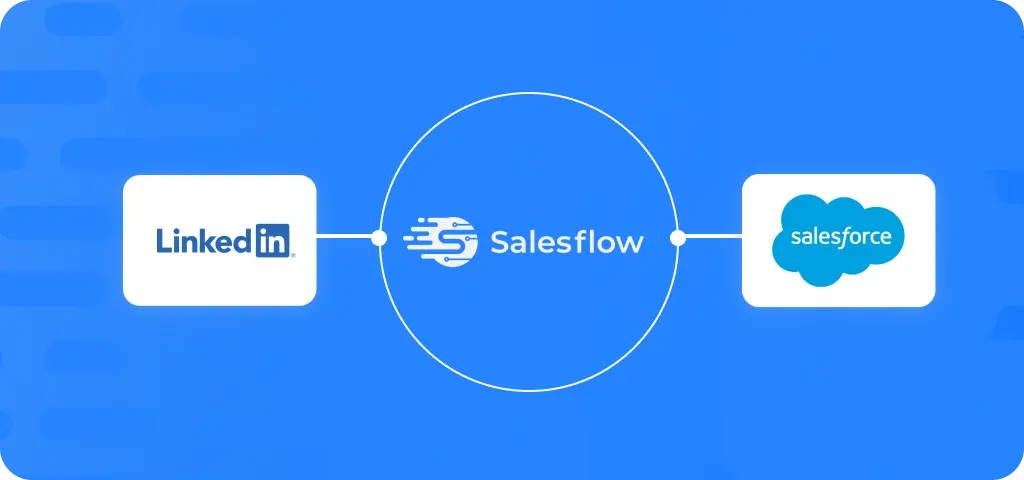
Now that you know just how integrating the two platforms can benefit your outreach activities, how do you do it?
Using Salesflow, it’s simple to connect your CRM with LinkedIn and automatically log your interactions. Here are the 10 easy steps:
1. Create or log into your Salesflow account.
2. Go to ‘native integrations’ and select ‘add new integration’.
3. Add an integration name and select ‘Salesforce’ as the platform.
4. Connect your Salesforce and LinkedIn accounts.
5. Choose whether you want to push or pull data between LinkedIn and Salesforce.
6. If you’re pushing data from LinkedIn to your CRM, you’ll be able to choose from the following triggers:
- When a campaign member accepts a connection request
- When a connection request has been automatically withdrawn from a campaign member
- When a campaign member replies
- When a prospect is added to a campaign
- When a prospect is removed from a campaign
7. If you’re pulling data from your CRM to LinkedIn, you can add existing CRM contacts into automated outreach cadences.
8. Choose which campaigns the integration should be applied to. Or, select ‘attach all’ for an account-wide integration.
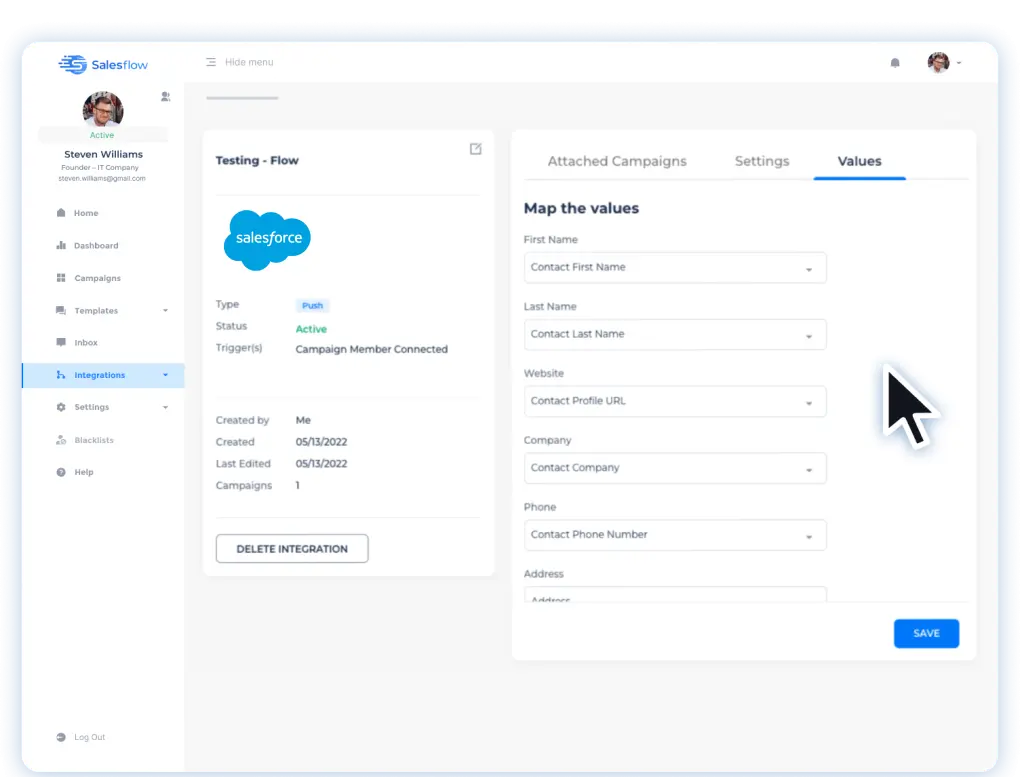
9. Make sure the correct fields are added to your CRM by mapping your data values.
10. Confirm your integration setup, and you’re ready to push and pull data to and from LinkedIn and Salesforce.
Integrating LinkedIn with other CRMs
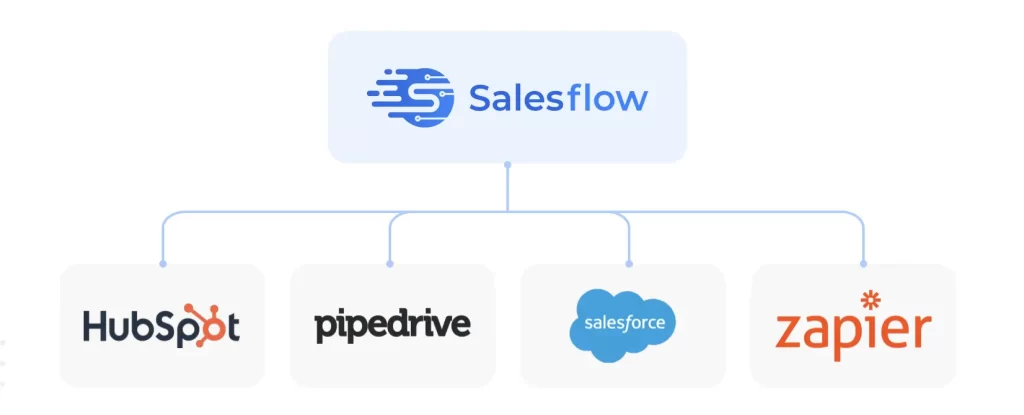
If you’re not using Salesforce, don’t worry. Salesflow has native integrations with HubSpot and Pipedrive, too. We even have a whole guide on integrating LinkedIn and HubSpot.
Not using HubSpot or Pipedrive? Consider using 2-way Zapier integrations to sync your CRM and LinkedIn data. You can set up Zapier integrations from right within your Salesflow dashboard: see our support guide to learn how.
Integrate Salesforce with LinkedIn
A Salesforce LinkedIn integration works best when each tool has a clear job.
Use LinkedIn Sales Navigator CRM Sync when you need LinkedIn's supported Salesforce experience.
Use Salesflow when you want automated LinkedIn outreach and need selected campaign events routed into Salesforce through webhooks, APIs, Zapier, or another automation workflow.
The result should be simple for the rep: prospect activity happens, the useful signal reaches Salesforce, and the next step is clear.
If you want to see how Salesflow can fit into your existing sales process, start a Salesflow trial or review Salesflow pricing before booking a demo with the team.
.svg)